4. Git 可视化合并
在进行分支合并时常因为出现冲突而导致合并终止,并需要手动解决冲突问题。如上节课执行 git merge myb1 时出现冲突。提示如下:
weimz@mzstudio:~/my_project$ git merge myb1
Auto-merging website.txt
CONFLICT (content): Merge conflict in website.txt
Automatic merge failed; fix conflicts and then commit the result.
其中 website.txt 文件出现了冲突,内容如下:
https://weimingze.com
<<<<<<< HEAD
https://weimingze.com/git/
=======
https://weimingze.com/c/
>>>>>>> myb1
在冲突比较少的情况下,上述文件可以手动修改后再改动提交合并。但文件比较多,冲突也比较多时。使用手动合并的方法就显得捉襟见肘,这时候最好使用 可视化的合并工具进行合并,比如 Meld、Beyond Compare 或 vimdiff 等。
在使用 git merge 合并因冲突而中断时,可以使用 git mergetool 命令调用已经设置好的可视化合并工具或使用 -t 选项临时启动一个可视化的合并工具进行合并。待合并完成后就可以使用 git commit 提交合并后的版本。
使用 git mergetool --tool-help 可以查询你当前版本的 git 所支持的基于图形的比较软件,如下所示:
weimz@mzstudio:~/my_project$ git mergetool --tool-help
'git mergetool --tool=<tool>' may be set to one of the following:
        meld             Use Meld (requires a graphical session) with optional `auto merge` (see `git help mergetool`'s `CONFIGURATION` section)
        vimdiff          Use Vim with a custom layout (see `git help mergetool`'s `BACKEND SPECIFIC HINTS` section)
        vimdiff1         Use Vim with a 2 panes layout (LOCAL and REMOTE)
        vimdiff2         Use Vim with a 3 panes layout (LOCAL, MERGED and REMOTE)
        vimdiff3         Use Vim where only the MERGED file is shown

The following tools are valid, but not currently available:
        araxis           Use Araxis Merge (requires a graphical session)
        bc               Use Beyond Compare (requires a graphical session)
        bc3              Use Beyond Compare (requires a graphical session)
        bc4              Use Beyond Compare (requires a graphical session)
        codecompare      Use Code Compare (requires a graphical session)
        deltawalker      Use DeltaWalker (requires a graphical session)
        diffmerge        Use DiffMerge (requires a graphical session)
        diffuse          Use Diffuse (requires a graphical session)
        ecmerge          Use ECMerge (requires a graphical session)
        emerge           Use Emacs' Emerge
        examdiff         Use ExamDiff Pro (requires a graphical session)
        guiffy           Use Guiffy's Diff Tool (requires a graphical session)
        gvimdiff         Use gVim (requires a graphical session) with a custom layout (see `git help mergetool`'s `BACKEND SPECIFIC HINTS` section)
        gvimdiff1        Use gVim (requires a graphical session) with a 2 panes layout (LOCAL and REMOTE)
        gvimdiff2        Use gVim (requires a graphical session) with a 3 panes layout (LOCAL, MERGED and REMOTE)
        gvimdiff3        Use gVim (requires a graphical session) where only the MERGED file is shown
        kdiff3           Use KDiff3 (requires a graphical session)
        nvimdiff         Use Neovim with a custom layout (see `git help mergetool`'s `BACKEND SPECIFIC HINTS` section)
        nvimdiff1        Use Neovim with a 2 panes layout (LOCAL and REMOTE)
        nvimdiff2        Use Neovim with a 3 panes layout (LOCAL, MERGED and REMOTE)
        nvimdiff3        Use Neovim where only the MERGED file is shown
        opendiff         Use FileMerge (requires a graphical session)
        p4merge          Use HelixCore P4Merge (requires a graphical session)
        smerge           Use Sublime Merge (requires a graphical session)
        tkdiff           Use TkDiff (requires a graphical session)
        tortoisemerge    Use TortoiseMerge (requires a graphical session)
        winmerge         Use WinMerge (requires a graphical session)
        xxdiff           Use xxdiff (requires a graphical session)

Some of the tools listed above only work in a windowed
environment. If run in a terminal-only session, they will fail.
上述显示当前可以直接设置并使用的是 meld 和 vimdiff,支持的合并软件有 Araxis Merge、Beyond Compare 等。
git mergetool 命令
作用: 用于在使用 git merge 合并发生冲突时调用可视化工具手动对冲突内容进行合并。
命令格式
git mergetool [选项] [提交1] [提交2] [--] [路径]
常用选项
--tool=<可视化工具命令> 或 -t <可视化工具命令>merge.tool 的设置可视化工具对冲突进行合并。-y 或 --no-prompt--tool 选项指定或 merge.tool 设置的可视化工具合并。示例:
1、 使用 meld 解决并冲突:git mergetool -t meld
执行结果如下:
weimz@mzstudio:~/my_project$ git mergetool -t meld
Merging:
website.txt

Normal merge conflict for 'website.txt':
  {local}: modified file
  {remote}: modified file
图形用户界面如下:
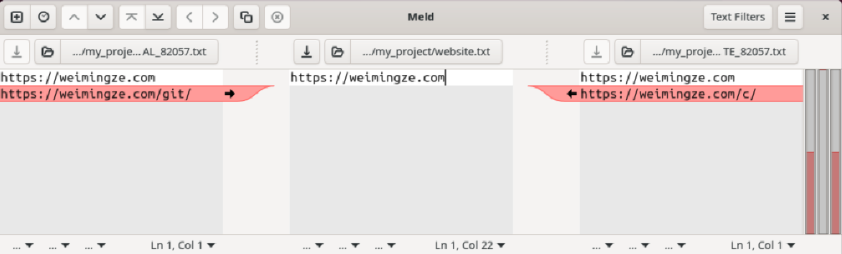
上图中,中间的编辑内容是最终合并后需要提交的内容。左侧内容是合并前当前分支中 website.txt 中的内容,右侧是合并前 myb1 分支中 website.txt 文件中的内容。编辑中间的内容,然后保存退出即可。
meld 安装和 Git 配置方法详见 附录 《meld 安装和 Git 配置》
2、 使用 vimdiff 解决合并冲突:git mergetool -t vimdiff
执行结果如下:
weimz@mzstudio:~/my_project$ git mergetool -t vimdiff
Merging:
website.txt

Normal merge conflict for 'website.txt':
  {local}: modified file
  {remote}: modified file
4 files to edit
图形用户界面如下:
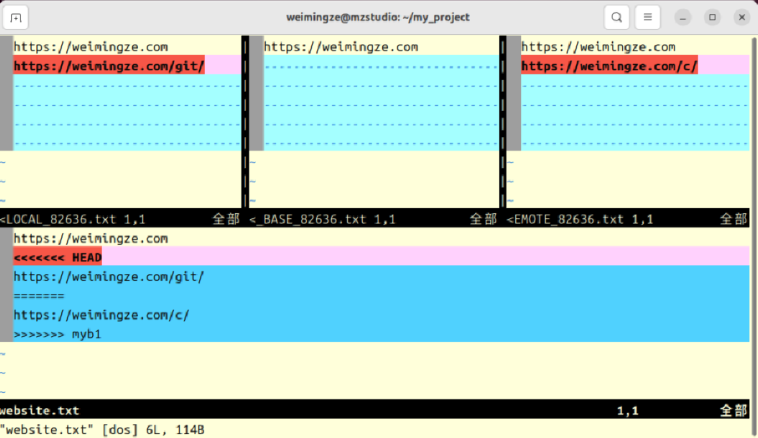
在上面的操作中,使用 ctrl + w 然后再 ctrl + w 即可以在不同编辑框中切换光标。上图中上面中间内容就是我们最终合并后的结果。编辑此文档,然后保存退出即可。
总之,使用 mergetool 对文件文件进行编辑更加直观,不容易出错。
实验:
尝试使用 meld 或 vimdiff 可视化工具来解决合并中的冲突。